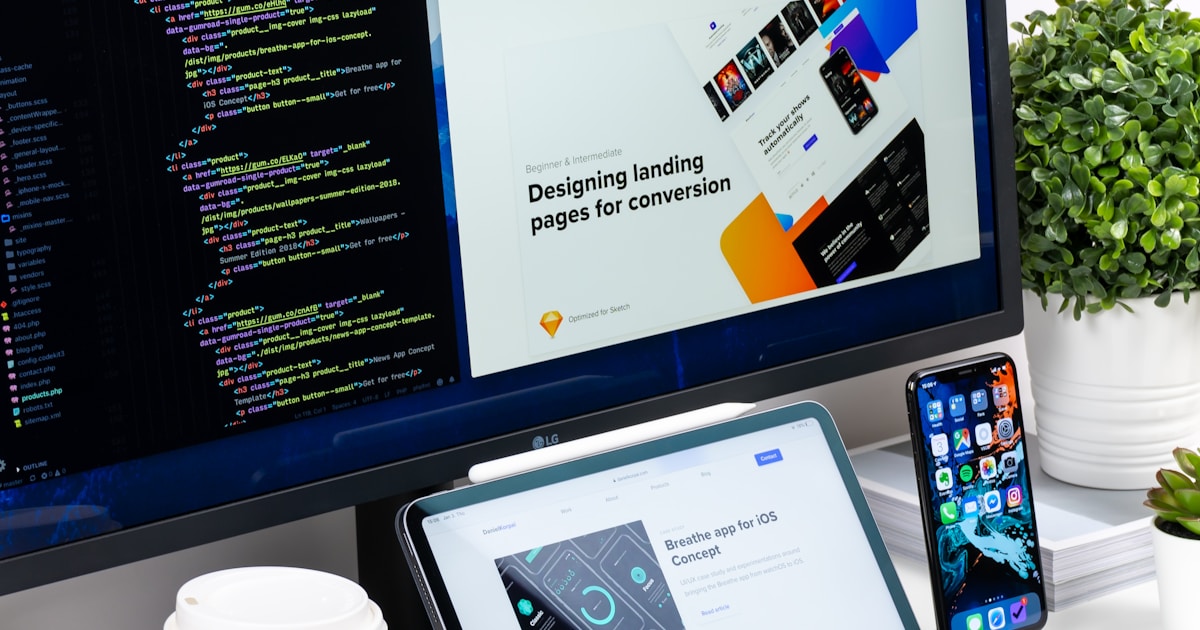
This is the lesson where vibe coding truly clicks. You're going to build a professional-looking landing page without writing a single line of code by hand. Instead, you'll describe what you want in plain English, and Claude Code will build it for you.
The Art of Prompting
The quality of your prompt directly determines the quality of the output. Here's the progression:
Bad prompt:
"Make a landing page."
Claude will build something, but it won't be what you envisioned. Too vague.
Good prompt:
"Create a landing page for Waitlist Wizard with a hero section that has a headline 'Be the first to know', a subtitle explaining we're building something new, and a centered email signup form with a blue submit button. Use a clean, modern design with lots of whitespace."
Better — Claude knows the structure, the content, and the general aesthetic.
Great prompt:
"Create a landing page for Waitlist Wizard with a hero section that has a headline 'Be the first to know', a subtitle 'We're building something special. Join the waitlist and be among the first to get access.' Centered email signup form with a navy blue (#1e3a5f) submit button. Use the Inter font from Google Fonts. The color scheme is navy blue (#1e3a5f) and white. Fully responsive. Clean, modern SaaS design with generous whitespace."
Now Claude has colors, fonts, copy, and design direction. The output will be very close to what you want.
Concept
Prompting is a skill, not a talent. You get better with practice. The key is specificity: be clear about what you want, include visual details (colors, sizes, layout), and describe the feeling you're going for.Building the Hero Section
Let's start building. Open Claude Code in your project folder:
Try It
In Claude Code, type this prompt:"Replace the content of app/page.tsx with a landing page for Waitlist Wizard. Create a hero section with: - A headline: 'Be the First to Know' - A subtitle: 'We're building something special. Join the waitlist and be among the first to get access when we launch.' - A centered email signup form with an input field and a navy blue submit button - Clean, modern SaaS design with generous whitespace - Use navy blue (#1e3a5f) as the primary color and white background - The page should be fully responsive"
Claude will generate the code and write it to app/page.tsx. Check your browser at localhost:3000 — you should see your landing page!
Adding More Sections
A great landing page has more than just a hero. Let's add features and social proof:
Try It
"Add a features section below the hero with 3 cards in a row. Each card should have an icon, a title, and a short description. The three features are: 1. 'Lightning Fast' — 'Get notified instantly when we launch. No spam, ever.' 2. 'Early Access' — 'Be among the first to try new features before anyone else.' 3. 'Free Forever' — 'The waitlist is free. No credit card required.' Use subtle icons and keep the design consistent with the hero."Then add social proof:
Add a simple social proof section below features. Show "Join 2,000+ people
already on the waitlist" with a row of small avatar circles (use colored
circles as placeholders). Keep it minimal and trust-building.
And a footer:
Add a simple footer with "Built by Waitlist Wizard" on the left and links
to "Privacy Policy" and "Terms of Service" on the right. Use a subtle
border-top to separate it from the content.
Making It Responsive
"Responsive" means your page looks good on phones, tablets, and desktops. Since we're using Tailwind CSS, Claude already handles most of this — but let's verify and fix anything that looks off.
Try It
In your browser, open Developer Tools (F12 or Cmd+Option+I on Mac). Click the device toggle icon (looks like a phone and tablet) to preview mobile view. If anything looks off, tell Claude: "The features cards overlap on mobile. Make them stack vertically on screens smaller than 768px."Iterating with Claude
This is the core vibe coding loop: describe, review, refine. Try these refinements:
- "Make the headline bigger — 48px on desktop, 32px on mobile"
- "Change the submit button color to a gradient from #1e3a5f to #2d5a8e"
- "Add a subtle gradient to the hero background — white to light blue (#f0f7ff)"
- "The spacing between sections feels too tight. Add more padding — at least 80px between each section."
Each time, Claude modifies the code, and your browser refreshes instantly. This back-and-forth is fast, fun, and surprisingly productive.
Pro Tip
If Claude makes a change you don't like, just tell it: "Undo that last change" or "Go back to how it was before." You can also use Git:git checkout -- app/page.tsx to restore the file to its last committed state.
Git Checkpoint
Your landing page is looking great. Time to save:
git add .
git commit -m "landing page complete with hero, features, social proof, and footer"
Honest Note
You just built a professional-looking landing page without writing code by hand. But here's what matters: you understand what was built. You know there's a hero section, a features section, a footer. You know the colors and layout choices. This understanding is what separates vibe coding from blind copy-paste. You're directing the build — AI is executing it.Key Takeaway
You just built a professional landing page by having a conversation with AI. The skill isn't typing code — it's describing what you want clearly and iterating on the result. That's vibe coding.